VMware Converter installation on Ubuntu Linux
Linux users will be pleased to discover that VMware Converter is now available on Linux free of charge. As a user of VMware products this makes me very happy, meaning I do not have to be booting the Windows machine just to use VMware Converter. For those not aware of what Converter can do, it can convert multiple virtual machines simultaneously, modify, resize and hot clone existing bare metal installations just to mention a few. The installation of VMware Converter on Linux is simple. This tutorial uses Ubuntu Linux as the installation system.
Download VMware Converter
First download VMware Converter free of charge from the VMware web site, you will need an account. http://www.vmware.com/products/converter/overview.html After you are granted access to the download page select Converter Installer for Linux. 
Installation
After the download is complete move to the directory where the file is located and untar the file. The version of VMware Converter may vary.
tar xvzf VMware-converter-4.x.x-xxxx.tar.gz
Now move to the new directory.
cd vmware-converter-distrib
And execute the installation script.
sudo ./vmware-install.pl
License agreement
You will be asked to accept the license agreement in order to continue, press enter until reach the end of the agreement and answer yes to accept.
Press enter, all the way
Its ok accept the default installation options when installing VMware software, unless you want specific changes. This is not the case. Pay attention to the questions below, accept the defaults.
Do you want to install Converter Standalone Client? [yes]
Do you want to install Converter Standalone Server? [yes]
Now you are asked whether you want to enable remote access for Converter Standalone Server for security reasons I decided not to. This is installation is for personal use.
Do you want to enable remote access in Converter Standalone Server? [no] no
And keep pressing enter.
Installation complete
Allow some time for the installation to finalize, after the installation is successful you can find VMware Converter on System Tools > VMware Standalone Client. 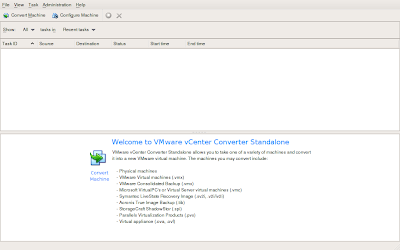
Un-install ?
If for some reason you decided to un-install VMware Converter navigate to /usr/bin and execute the un-install script.
cd /usr/bin
sudo ./vmware-uninstall-converter.pl
References
converter, linux, ubuntu, vmware — Apr 4, 2009