Enable ping on Windows Server 2008
By default Microsoft disables Ping on the Windows platform, probably as an added security measure. However Ping maybe needed for testing or monitoring purposes. The process to allow Windows Server to respond to Pings is minimal, requiring few changes to the Windows firewall. Go to Start > Administrative Tools > Windows Firewall with Added Security 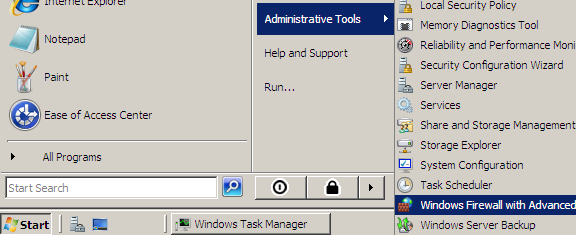 On the sidebar look for Inbound Rules > File and Print Sharing (Echo Request - ICMPv4-IN) > right click on Enable Rule
 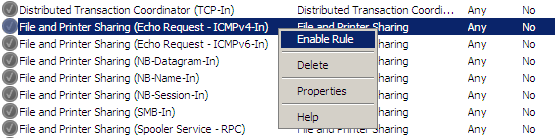 The rule has now been enabled and the server will respond to Pings.
  If you wish to later disable ping all you have to do is right click on the rule and select > Disable Rule
networking, windows server — Feb 12, 2010